Content Distribution
EZPlayer usually sends live data to controllers over the network while the show runs. This is a flexible option and requires no data storage on the controller. However, there may not be a show network, or the network may not be adequate for real-time data delivery. For controllers that have storage for show data and can play sequences and audio themselves, EZPlayer offers "Content distribution".
Supported controllers for Content distribution are listed in the Support Matrix.
There are two ways devices may use the distributed content:
- Player: To play back stand-alone
- Remote: To play in sync with the rest of a larger show
What gets sent
For each song in the show, EZPlayer sends:
- The sequence/slice. If the device is a remote responsible for part of the layout, it is sent only the channels it needs, not the whole show, for example
sliced to 12,288 of 92,775 channels. - The audio, when the song has any. This is converted to the format used by the device.
- An inventory playlist, listing everything that was put there, so it can be found and played on the device. This is a list, not a schedule, and is only intended as a starting point for your show setup.
Controllers that play from their own card
- A HinksPix should have the SD card installed, and plays sequences stepped at exactly 25 ms or 50 ms, names files in 29 characters or fewer, and pairs audio by naming it in a playlist entry beside the sequence.
- A Falcon (V4 or V5 board) needs to have an SD card installed.
- A Genius needs firmware 2.x+ and an SD card installed.
- FPP cape controllers and stand-alone players.
Audio on a device playing by itself
A device playing from its own card plays its own audio, which means it needs an audio output of its own.
- HinksPix has built-in audio.
- Genius has no audio hardware at all.
- Falcon controllers may require an audio board.
- FPP capes may include an audio jack, or a USB device may be required.
Starting a distribution
There are three ways to access content distribution:
- Show Status has a Content Distribution & Sync card with Distribute now, Check and Details.
- Playback Settings → Content Sync has the same actions beside the settings.
- The controller actions offer Send content / Distribute content and Check content. Per-device action menus can be used to target operations to a single controller.
For scripting, the same run is available from the command line as controller distribute and over the LAN API as the distribute command.

Check what's needed reads each device's own file list and reports what a send would transfer, without transferring anything.
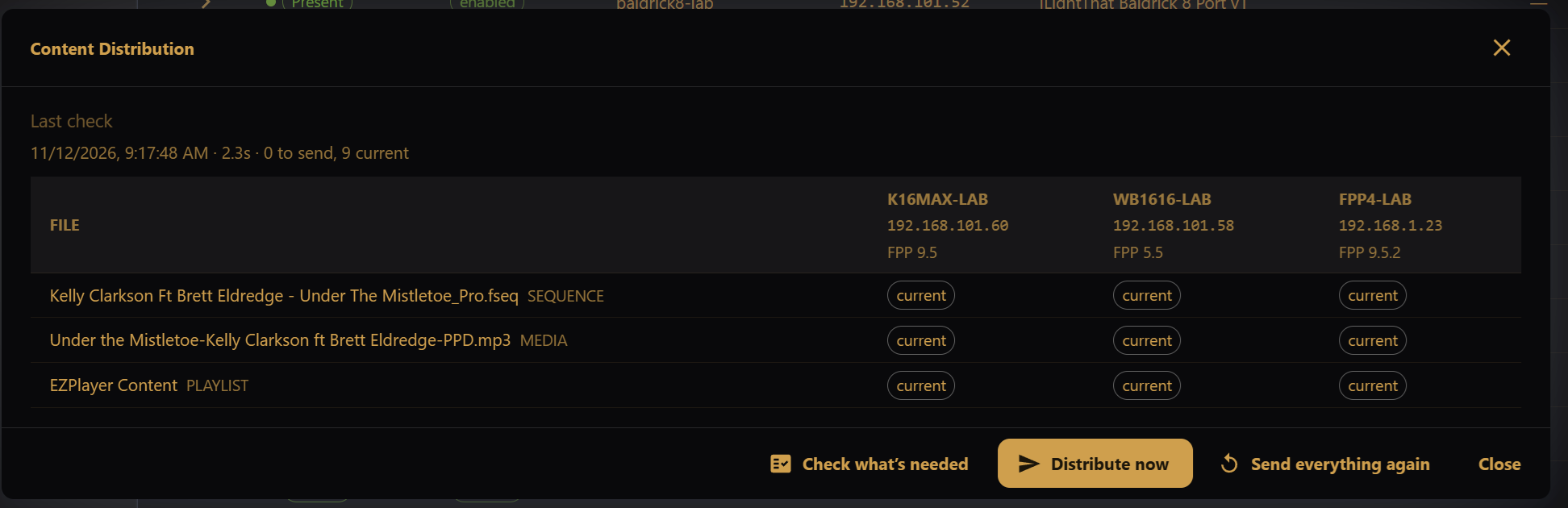
Distribute now sends what is missing. It never re-sends a file the device already holds correctly.
Send everything again sends every file to every device, whether or not it looks current.
While a run is in flight, both the card and the dialog show overall progress and a line per device, so one slow or stalled device is obvious. Stop cancels the run.
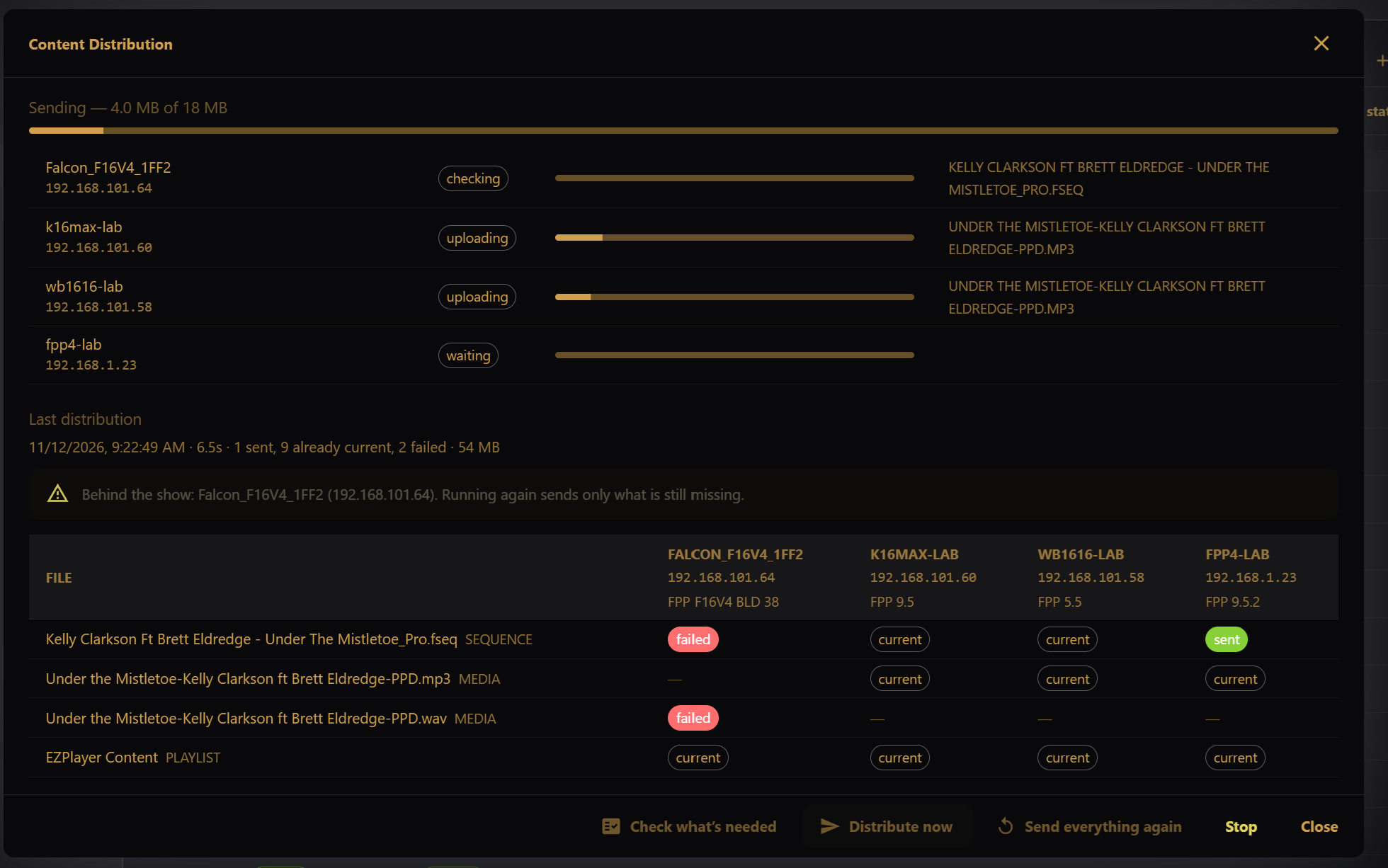
After operations are complete, a report is produced. Details opens it; when there was nothing to do, the dialog opens by itself to say why.
Reading the report
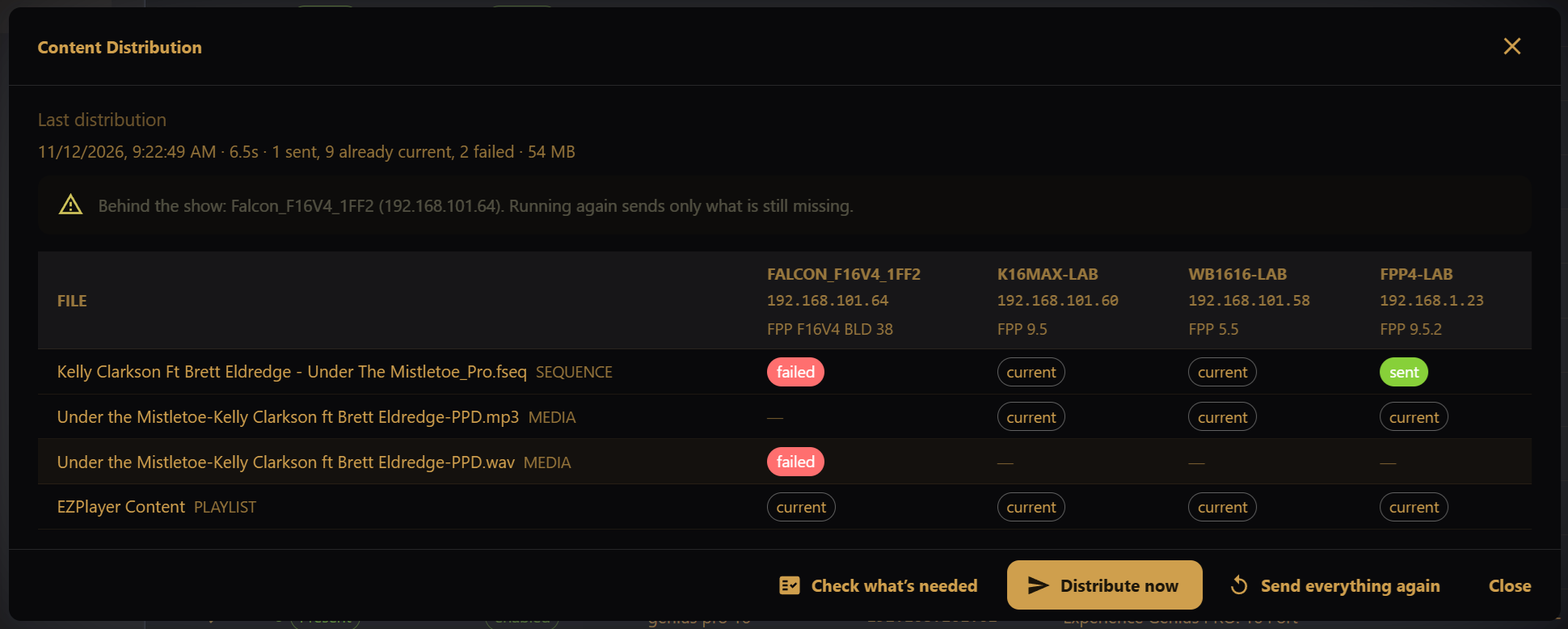
The Details dialog presents the last run. Each row represents a file, devices are listed as columns. Each cell is one of:
| Chip | Meaning |
|---|---|
| sent | transferred during this run |
| current | already correct on the device, so nothing was sent |
| to send | a check found it missing; nothing was transferred |
| failed | the transfer was attempted and did not succeed |
Hovering a cell gives the reason behind the decision, and the bytes and time for anything transferred. A device that came out of the run still behind the show is called out above the table.
Why a file is re-sent
EZPlayer compares the device's file against the current data, and re-sends only when there is a real difference. Differences you may see:
not on device: The controller doesn't have an existing file.different sequence id: The sequence ID is used to tell that it is a different render of the same sequence.4513 frames on device, 4200 here: The sequence has been re-rendered at a different length.50ms step on device, 25ms here: The controller should be reloaded with data at a different frame rate.max channel 93838 on device, 94342 here: The models handled by the controller have changed.6 sparse ranges on device, 1 here: The models handled by the controller have changed.
Audio is simpler: it is re-sent only when the device's byte count disagrees with EZPlayer.
There are some differences this comparison cannot see. Use Send everything again after a re-render that moved models or made other changes.
Sending automatically
To enable automatic content distribution, see Playback Settings → Content Sync:
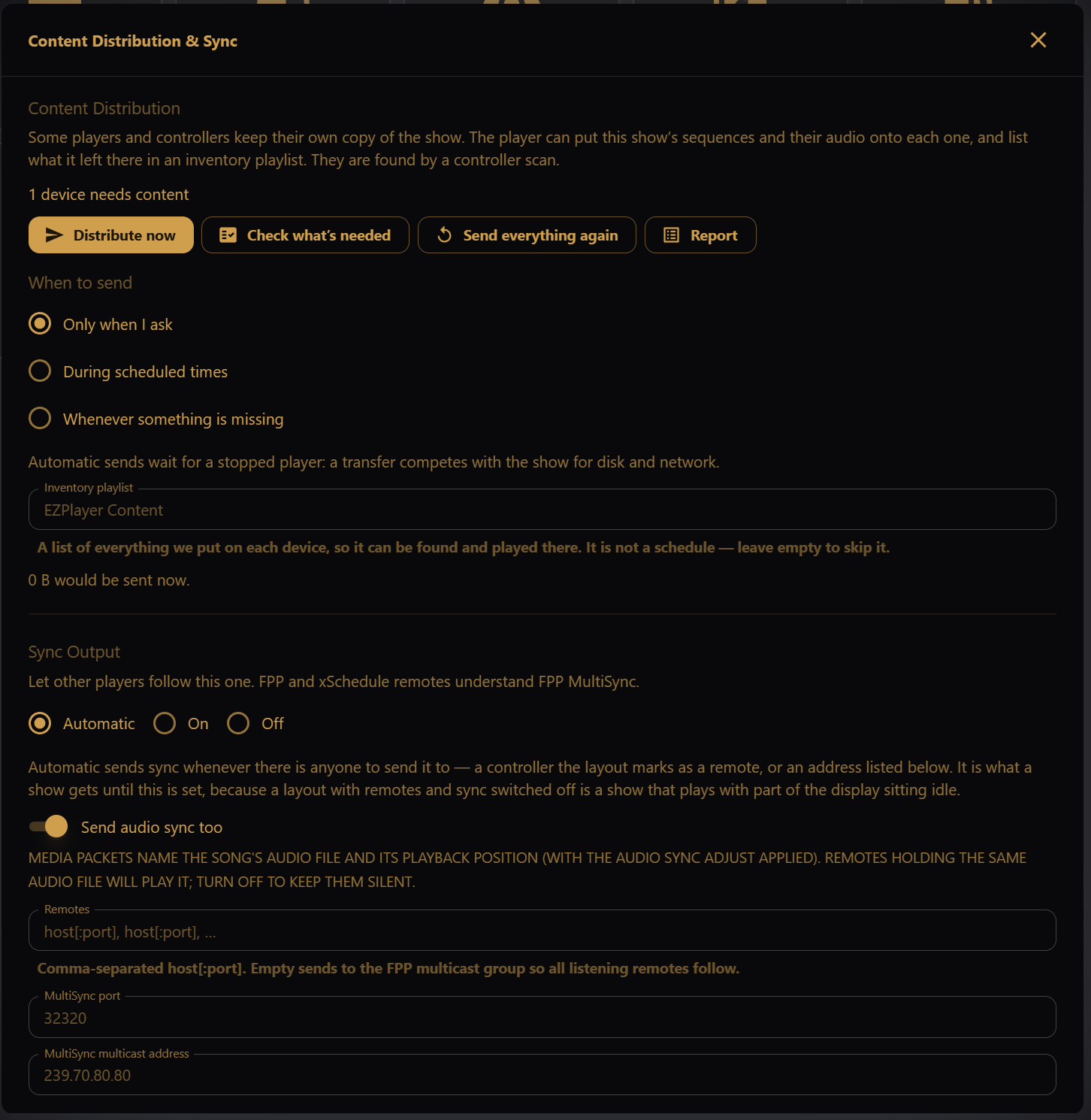
- Only when I ask — nothing is sent unless you press a button.
- During scheduled times — sent inside the distribution windows you define. With no windows defined, nothing is sent automatically.
- Whenever something is missing — sent as soon as a check finds that content distribution work is needed.
With either automatic mode you can also set:
- Send new songs as they are added — a song added on the Songs screen, or installed by the cloud, is queued and sent without waiting for the next look round.
- Look for work every (minutes) — how often to check. A look with nothing to send costs a few metadata reads per device.
Automatic sends wait for a stopped player. A large transfer competes with the show for disk and network, so EZPlayer will not start one while something is playing. The status card says why it is quiet — Automatic distribution is off, or Outside the distribution window.
Sync output
Content files are only half of what a remote needs; the other half is being told when to play them. That is the Sync Output setting on the same page, and it has three options:
- Automatic — sync is sent whenever there is anyone to send it to: a controller the layout marks as a remote, or an address listed explicitly. This is the default.
- On — always send.
- Off — never send.
If something goes wrong
A device shows an error. The device can be reached, but its file list could not be read. Confirm it is reachable from the Controller List, then run Check.
A device is listed as unsupported, or a file is refused with a reason. See the Support Matrix. See Controllers that play from their own card for the limits that lead to file refusals.
A transfer failed. Check free space on the device first; a show's sequences can be large, and a sliced sequence for a remote may be substantial, especially for those that only support uncompressed sequences. Try running Distribute now again.
The device has the files but will not play them. Distribution puts files and an inventory playlist on the device; it does not schedule anything there. Check the device's playback mode and schedule. For remotes, check the Sync Output EZPlayer setting.