Show Status — Statistics
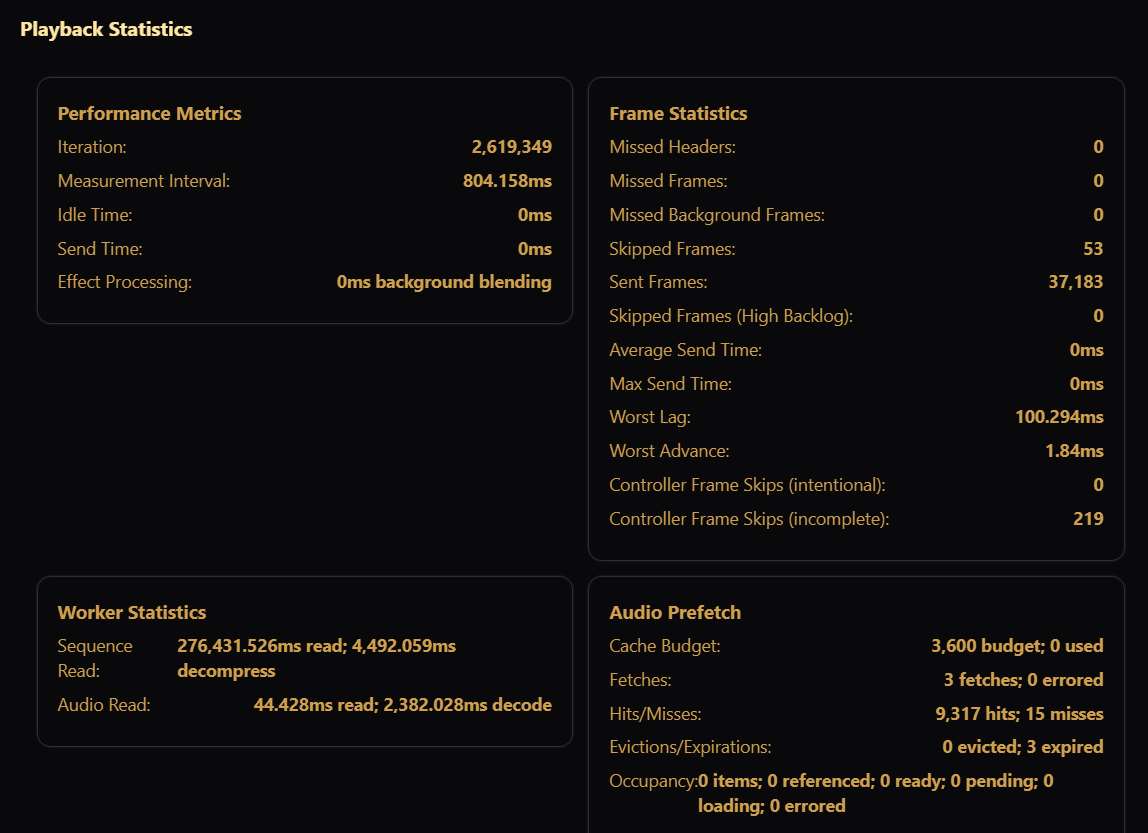
On the Show Status screen, the Player Status card has a Stats button (EZPlayer only). Click it to open Playback Statistics — a detailed look at how the player is performing while a show runs.
If the player has not reported any stats yet, the dialog shows No playback statistics available until the player is running.
What you'll see
The dialog groups numbers into these cards:
Performance Metrics
How busy the playback loop is: the iteration count, the measurement interval, idle time, send time (time spent sending data to controllers), and Loop Delay (p50 / p99 / max). Effect Processing shows the time spent blending background effects.
Frame Statistics
Counts of missed headers, missed frames, missed background frames, skipped frames, and sent frames, plus skipped frames (high backlog). Timing numbers include average send time, max send time, worst lag and worst advance.
Also shown:
- Controller Frame Skips (intentional) and (incomplete) — frames a controller skipped on purpose, and frames skipped because the previous one had not finished.
- Packets Dropped by Sender — highlighted in a warning color when above zero.
Rising missed or skipped counts can mean the player or network is struggling to keep up.
Worker Statistics
How long the player spends reading and decompressing sequence files (Sequence Read) and reading and decoding audio (Audio Read).
Audio Prefetch and FSEQ Data Prefetch
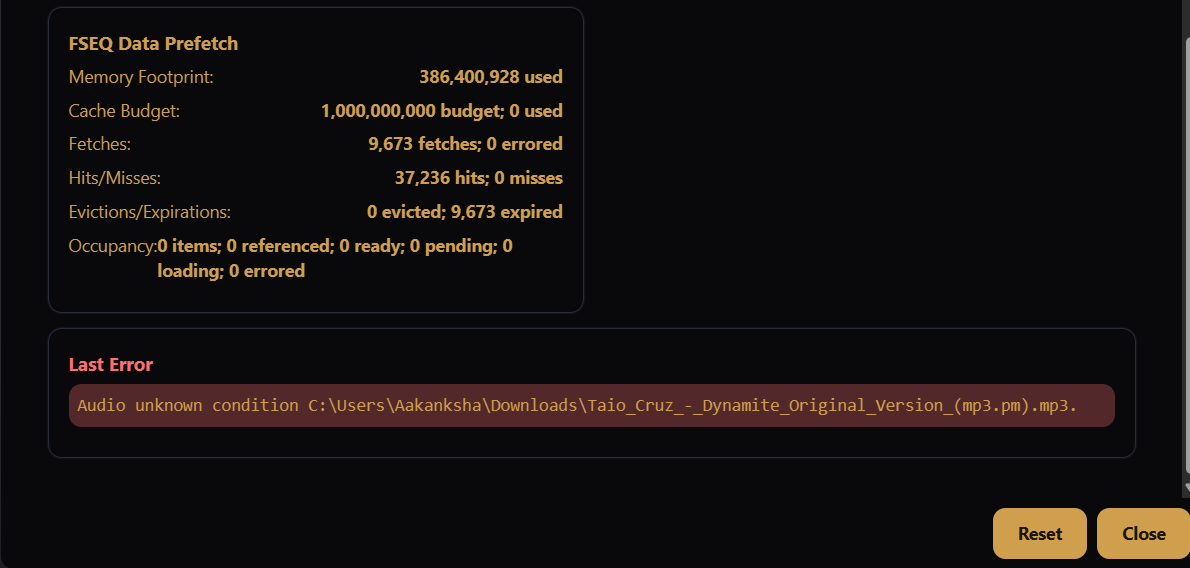
How much audio and sequence data is cached ahead of playback. Each card shows the cache budget and amount used, fetches and errors, hits and misses, evictions and expirations, and occupancy (items referenced, ready, pending, loading, or errored). FSEQ Data Prefetch also shows the overall memory footprint. Useful mainly when diagnosing slow starts or cloud-show downloads.
Last Error
If the player hit a recent error, it appears in a Last Error card at the bottom of the dialog.
Reset
Click Reset to clear the cumulative counters and start fresh — handy after you fix a problem and want a clean baseline for the next run. Click Close to dismiss the dialog.
For the broader Show Status screen, see Details. For per-controller health, see Controllers.