Viewer Control
Let viewers request songs during configured hours — either through Remote Falcon or EZPlayer's built-in viewer control.
Which Viewer Control Should I Use?
EZPlayer includes a built-in show page where visitors can see what's playing, request songs, and listen to your show's audio. It's designed to work with minimal configuration.
EZPlayer also integrates with Remote Falcon, a mature, free platform dedicated to viewer interaction and song requests.
Which should you use?
- Remote Falcon offers extensive viewer analytics, fully customizable website templates, self-hosting, and a shorter, cleaner URL for your visitors. If you want more control over your viewer experience or detailed audience analytics, Remote Falcon is worth exploring.
- EZPlayer's built-in show pages provide the essentials with minimal setup and no additional services. If you just want visitors to see what's playing, request songs, and listen to your show, they're an EZ place to start.
You can use both! Remote Falcon and EZPlayer show pages can be enabled independently, so there's no need to choose one permanently. You can add either one later, or run both at the same time.
Where Viewers Can Pick Songs
Two switches control where viewers can pick songs from:
| Switch | What it does |
|---|---|
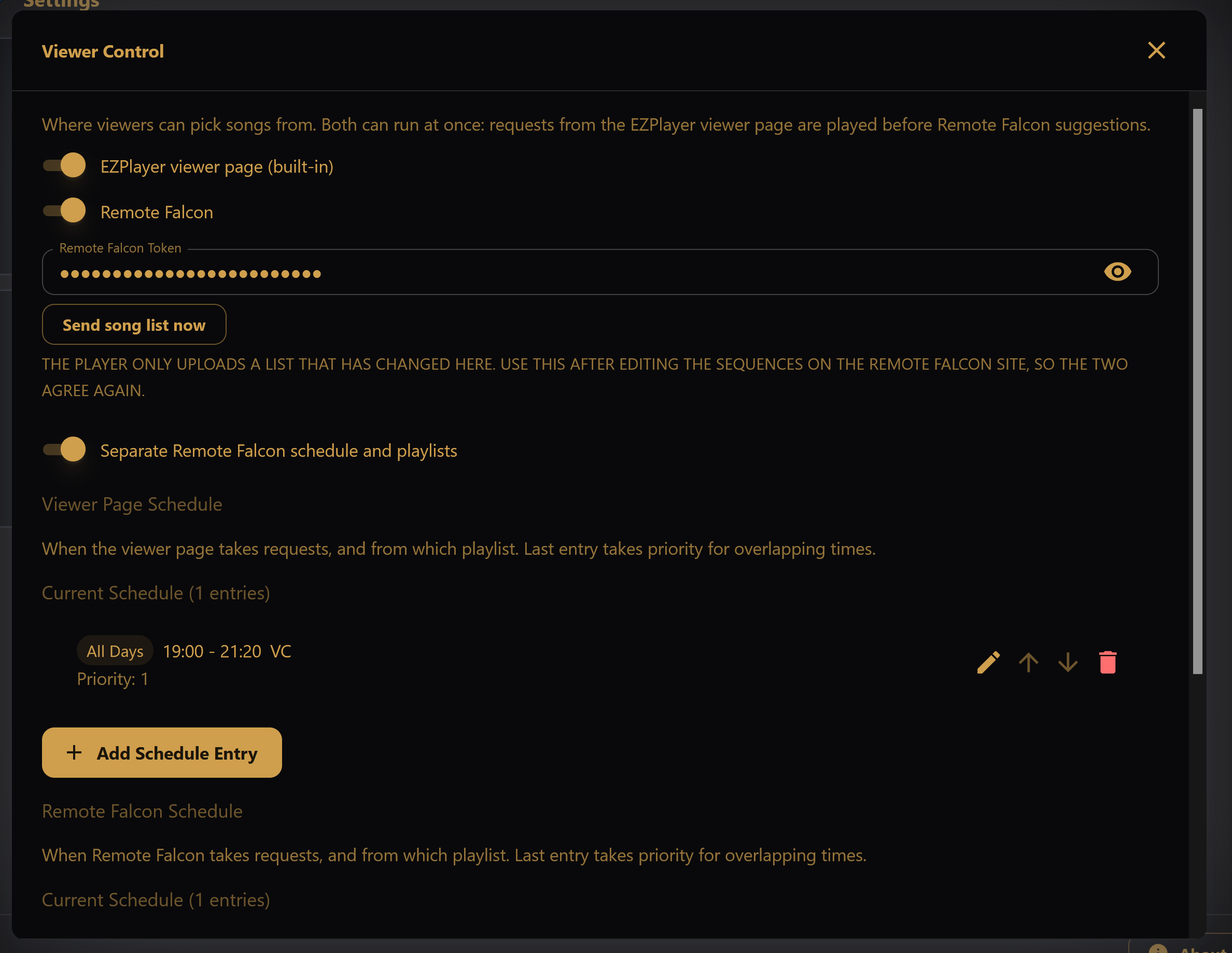
| EZPlayer viewer page (built-in) | Use EZPlayer's own viewer-control integration. |
| Remote Falcon | Poll Remote Falcon for viewer requests. Requires a Remote Falcon token. |
Both can be on at once; requests from the EZPlayer viewer page are played before Remote Falcon suggestions. With both off, there are no viewer requests.
When Remote Falcon is on, paste your Remote Falcon Token into the field below the switches. Use the eye icon to show or hide the token.
The player sends your song list to Remote Falcon whenever it changes. Click Send song list now to push it again, for example after you deleted sequences on the Remote Falcon site (the player cannot see this). Remote Falcon's reply appears under the button, so if a list is rejected, the reason is shown there.
During active viewer-control hours, the player keeps your Remote Falcon show page updated with what's playing and checks for viewer requests as it chooses the next song.
Schedule Configuration
When either switch is on, define one or more schedule entries that control when viewers can request songs. The schedule is shared by both unless you give Remote Falcon its own schedule (see below):
- Days — all days, weekends, weekdays, or a single day of the week.
- Start / end time — 24-hour format (
14:30). End times can use extended hours (25:00= 1:00 AM the next day) for windows that cross midnight. - Playlist — which playlist viewers can pick from during this window.
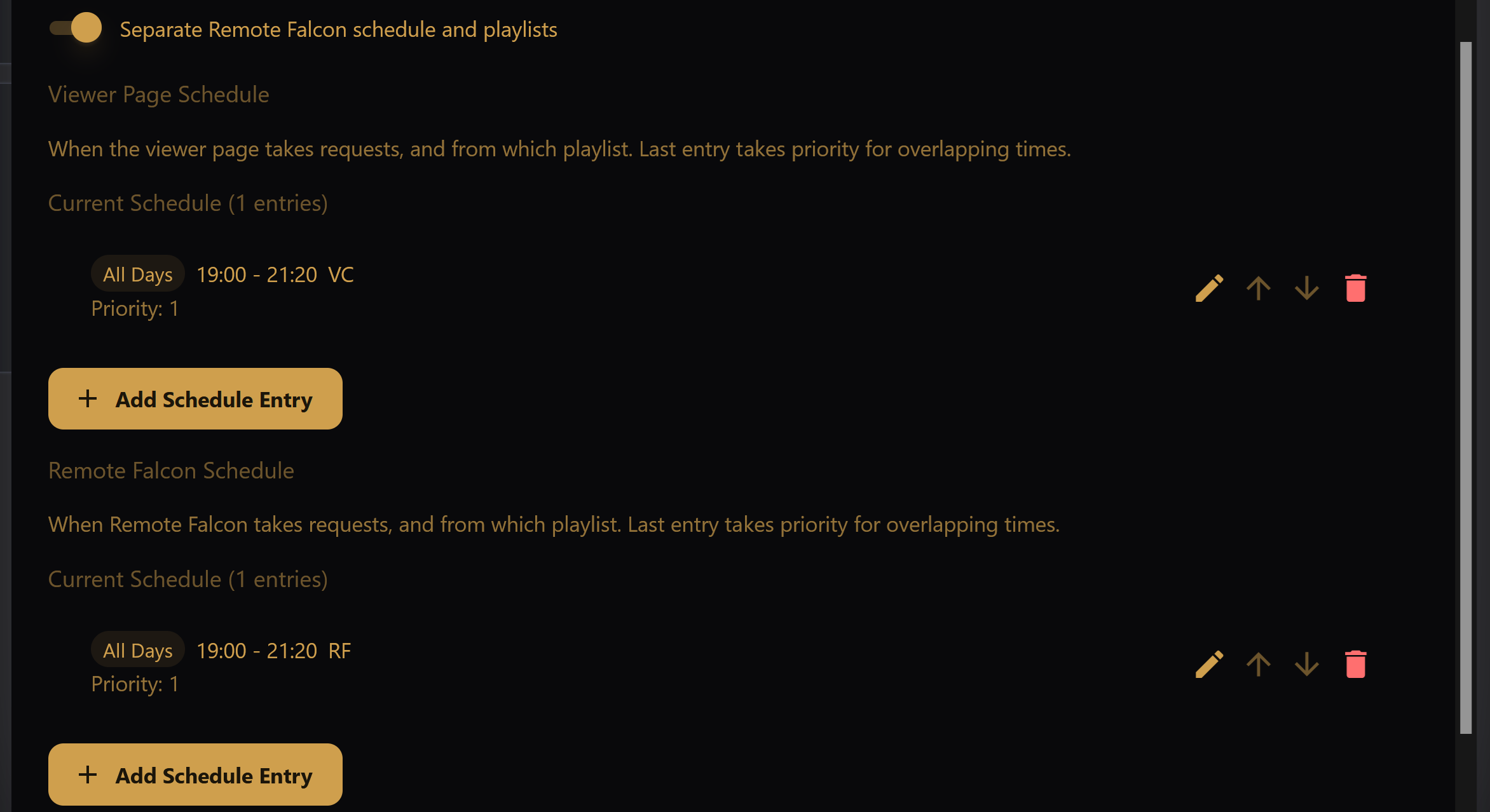
Add entries with Add Schedule Entry. Each entry in Current Schedule has buttons to edit it, move it to a lower or higher priority (up/down arrows), and delete it (trash icon, with a confirmation).
If windows overlap, the last entry in the list takes priority (shown as
Priority: <number>, where a higher number wins).
Separate Remote Falcon Schedule
When the viewer page and Remote Falcon are both on, they share one schedule by default. Turn on Separate Remote Falcon schedule and playlists to give Remote Falcon its own windows and playlists, shown as a second list, Remote Falcon Schedule, under the Viewer Page Schedule. Use it when Remote Falcon should offer a shorter song list than the viewer page (Remote Falcon limits how many songs a show can list), or take requests at different hours.
The Remote Falcon schedule starts as a copy of the shared schedule; after that, edit either list on its own. Viewer-page requests still play before Remote Falcon suggestions whenever both windows are open.
Songs Between Repeats
Remote Falcon and the EZPlayer viewer page each keep their own "don't repeat"
rules, but neither sees the other's picks or the songs your playlist plays on
its own. Set Songs between repeats to have the player itself drop a viewer
pick when that song is playing, up next, already requested, or started within
that many songs. Dropped picks show in Viewer Activity as skipped picks.
0 turns the check off.
It works the other way too: when a song has just played (usually a viewer pick), a scheduled playlist passes over that song if it comes up again too soon. For a playlist the spacing is held to 40% of its distinct songs, so a short playlist is never starved — a 5-song playlist waits at most 2 songs. Repeats your schedule makes on its own (a song listed twice, or back-to-back shows that share a song) still play, and requests themselves are never skipped this way.
Viewer Control Status Screen
For details about viewer picks and how EZPlayer processed them, see Viewer Control Status.