Player Screen
The Player screen is EZPlayer's home view — the first thing you see when you open the app. It answers three questions at a glance:
- What is playing right now?
- Are my controllers healthy?
- What does today's schedule look like?
Use it as your day-to-day command center during setup and show nights. For deeper diagnostics (per-controller detail, statistics, server status), open Show Status.
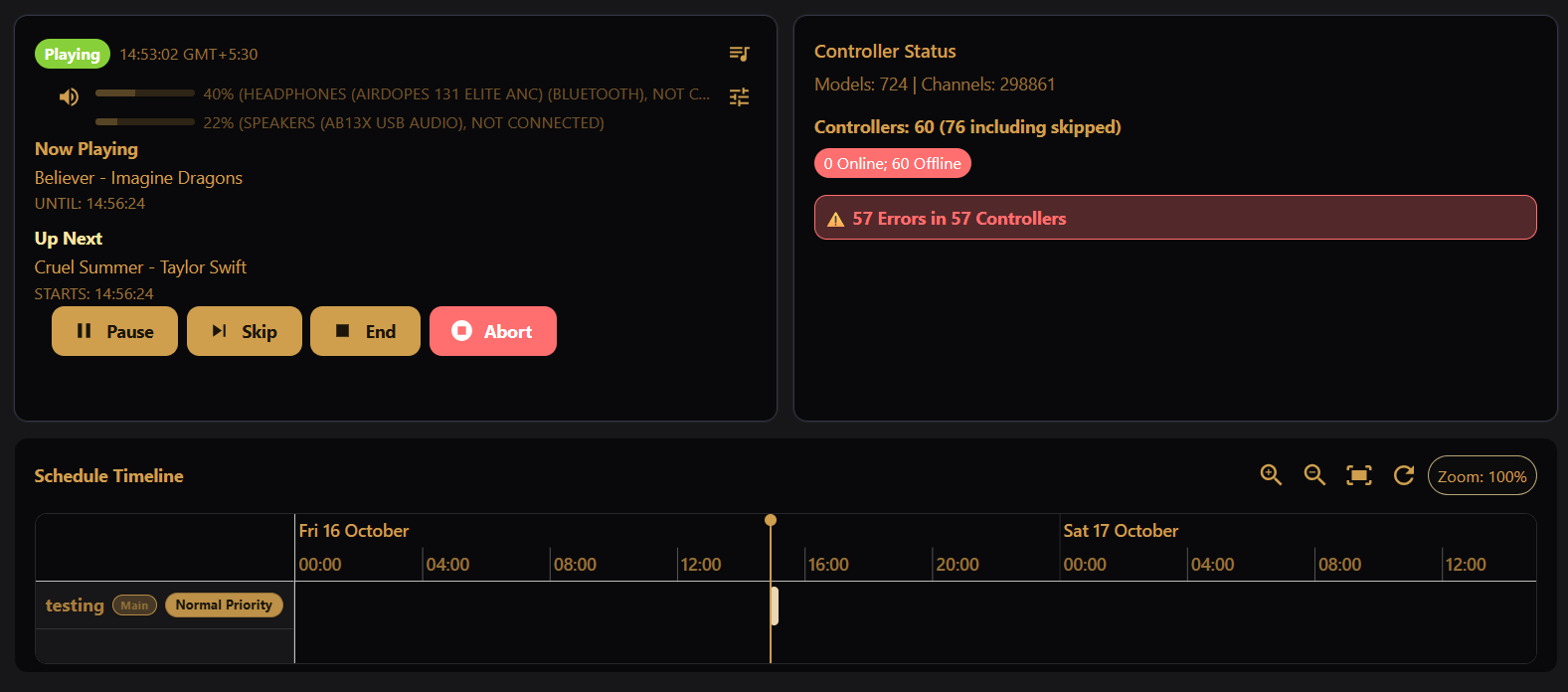
Layout
The screen has three sections, top to bottom:
| Section | What it shows |
|---|---|
| Now Playing | Live playback status, volume, current song, next item, and controls |
| Controller Status | Summary of models, channels, and online/offline health |
| Today's timeline | Simulated run-through of today's and tomorrow's scheduled events |
Now Playing card
The Now Playing card streams live status from the playback engine.
Status indicator
A chip at the top shows the current player state:
| Status | Meaning |
|---|---|
| Playing | Sequences are advancing; lights and audio are active |
| Paused | Playback is frozen (pause) |
| Ending | A graceful End is under way: the current song (and any outro) finishes, then playback stops |
| Stopped | Nothing is playing — schedule was stopped or has not started |
Next to the chip, the player's clock is shown with its time zone. If the device you are viewing from is in a different time zone, or its clock differs noticeably from the player's, a Local time and a clock-difference note are shown as well.
Volume
A meter shows the current output level (0–100%). If your volume is set up per audio output, there is one meter per output, labelled with the device name; an output the player cannot currently find is dimmed and marked not connected. If no audio outputs are selected, a No audio outputs selected warning is shown.
The level follows your volume schedule, so the meter is read-only. You can mute/unmute with the speaker icon, and adjust default and scheduled volumes by clicking the meter or the tune icon — see Volume.
Now Playing and Up Next
When a song or sequence is active:
- Now Playing — title of the current item and Until time (when it is expected to end).
- Up Next — what plays after it and when it Starts: the next song of the show, a request waiting its turn, a show that was interrupted by a request and will resume, or the next scheduled show.
If a background schedule is running, a Background entry is shown in the same way, with Until (or Starts, if it has not begun yet).
If nothing is playing, the card shows No track currently playing.
Playback details
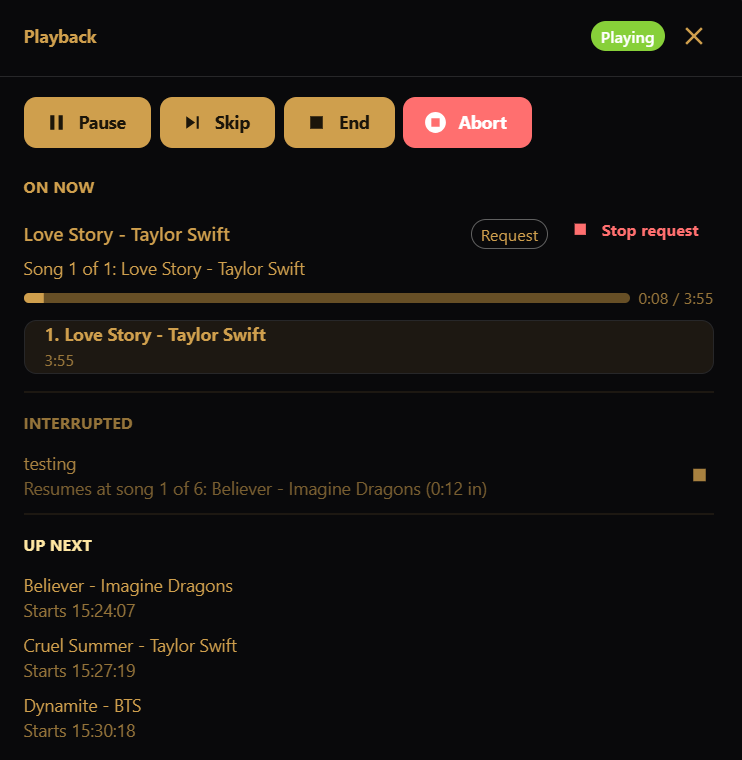
The list icon beside the status chip opens Playback details, a closer look at what the engine is doing. The same dialog opens from the Player Status card on the Show Status page. It has these sections, top to bottom:
| Section | What it shows |
|---|---|
| Transport | The same Pause / Resume, Skip, End and Abort buttons as the Now Playing card |
| On now | The playlist or request that is on, labelled Scheduled or Request, with its state (Playing, Paused, Ending). Includes the current song and its position (Song 3 of 12, plus Intro / Outro, or looping), a progress bar with elapsed and total time, and when the schedule ends. The full song order is listed below, with the current song highlighted. Stop request appears when what is on was requested |
| Interrupted | A show that a request interrupted and will go back to, and the song it resumes at. The stop icon means do not resume this |
| Waiting | Requests waiting their turn, and items that are due but outranked by what is on. The × removes an item |
| Up next | What comes after, with start times |
If nothing is playing, On now shows Nothing is playing. In kiosk mode, the End, Abort, stop and remove controls are hidden.
Controls
While playback is active (Playing, Paused, or Ending), the same playback controls as the jukebox appear inline:
- Play / Pause / Resume
- Skip — end the current song abruptly and proceed to the next
- End — stop gracefully: after the current song, play any outro, and then stop (the button reads Ending and is disabled once the stop is under way)
- Abort — hard stop: immediately stop
If there is a queue of jukebox or API requests, they appear below the controls. Remove an item with ×.
Reload Schedule
When the player is Stopped, a Reload Schedule button appears instead of
the transport controls. Click it to reread the schedule from disk and re-engage
playback (resetplayback). Pressing this is generally not needed unless you
have manually changed files on disk, or something has gone wrong. The button is
disabled while a controller operation is running or queued, since reloading
clears controller state.
Controller Status card
The Controller Status card summarizes your lighting network:
- Models and Channels — totals from your show layout
- Controllers — total count (with the number including skipped controllers, when different) and an Online / Offline chip: green when all are online, red when any are offline, amber otherwise
- Health banner — green All Controllers Online & Healthy when all controllers are online with no errors, red with the error count when errors are detected, grey No Controllers Assigned when no controllers are assigned
This is a summary view. For details, see the Show Status screen.
Today's timeline
The lower half of the Player screen is an interactive timeline of today's schedule. EZPlayer shows your high-level schedule for today and tomorrow here. The view opens on today through the next 24 hours, and you can scroll or zoom to see the rest. For exact details, you can simulate your show and get exact timings from the Schedule Preview screen.
What you see
- Main schedules — colored by priority (high, normal, low)
- Background schedules — shown in a single distinct color
Hover or click timeline items for detail. Use the toolbar to:
- Zoom in / zoom out — focus on a time range
- Fit to screen — show the full range
Important notes
- The timeline is a summary of the plan for today and tomorrow, not a live log of what already played. Jukebox overrides and manual stops may cause the show to differ from what was predicted at the start of the day.
- If you have no songs, playlists, or schedule entries for today or tomorrow, the screen shows No schedule data available for today or tomorrow (or No schedule events for today or tomorrow when the data exists but nothing is scheduled).
- For multi-day preview, priority conflicts, and loop/shuffle testing across a custom date range, use Schedule Preview on the Schedule screen — see Schedule Preview.
The timeline updates when your schedule, playlist, or song data changes.
Desktop app vs LAN UI
The LAN UI can be used to check status from a phone or other machine on your network. Kiosk mode keeps the Player screen available for a public-facing display while hiding management screens and destructive controls.
| Capability | Desktop app | LAN UI (normal) | LAN UI (kiosk) |
|---|---|---|---|
| View Player screen | Yes | Yes | Yes |
| Live mute toggle | Yes | Yes | No (read-only meter) |
| Volume settings | Yes | Yes | No |
| End / Abort controls | Yes | Yes | Hidden |
| Today's timeline | Yes | Yes | Yes |