Cloud Status / Control UI
Open the Cloud screen from the sidebar to see how your player is connected to EZRGB, monitor layout and sequence downloads, and trigger a sync when you have just changed something on EZRGB.
If the player is not registered yet, start with Registering.
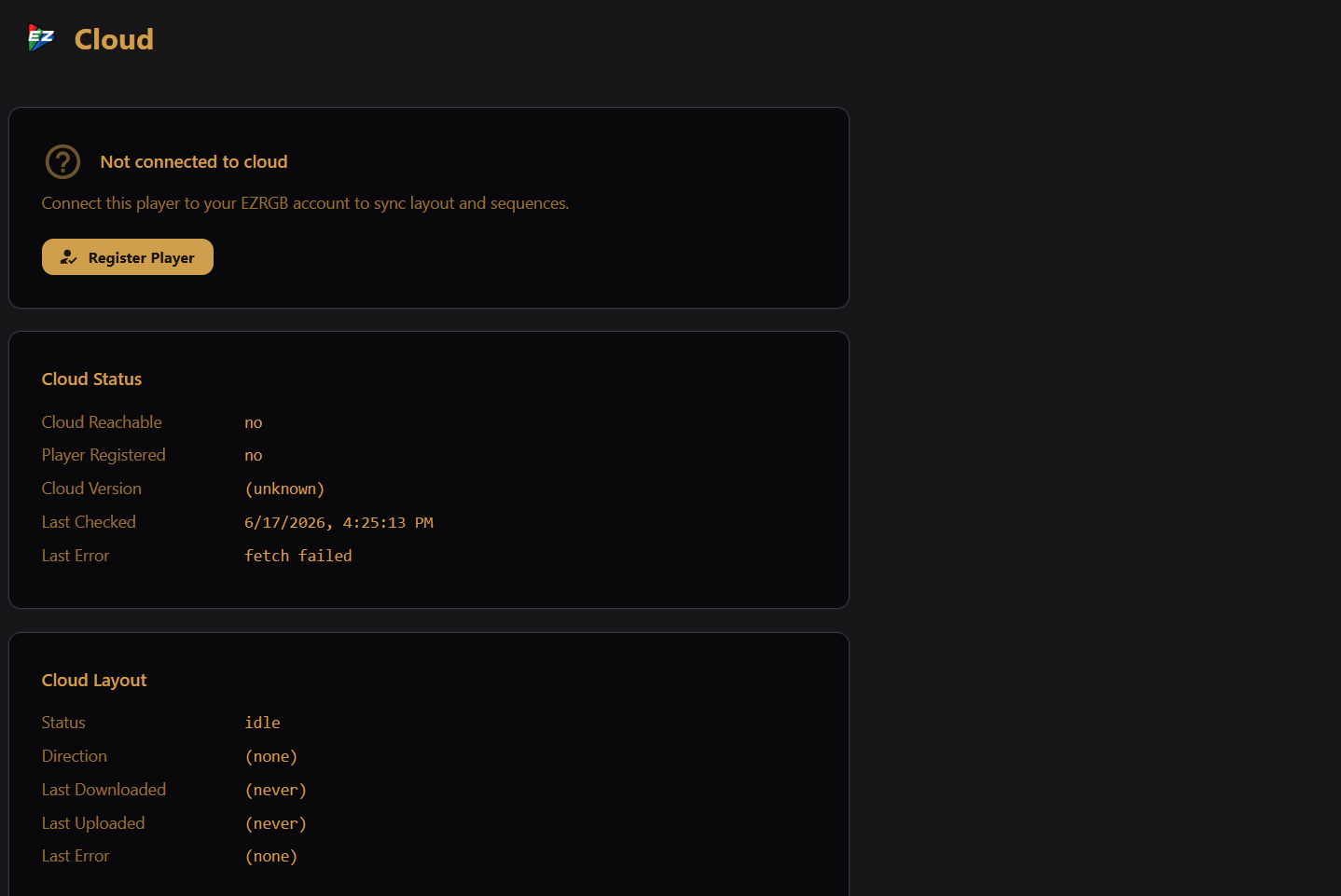
Connection summary
The card at the top shows your overall cloud state:
| What you see | What it means |
|---|---|
| Not connected to cloud | The player is not registered yet. Click Register Player. |
| Cloud paused | Cloud sync is turned off. Settings are kept — click Resume Cloud to continue. |
| Cloud connected | The player is registered and actively talking to EZRGB. |
When connected (or paused with a layout mode already chosen), a chip shows who owns the layout:
- Cloud master — layout and sequences come from EZRGB. Local layout edits will be overwritten on the next sync.
- xLights master — your local show folder owns the layout; the cloud syncs sequences and other content.
A line below may show current activity — Pulling layout…, Unpacking layout…, Pushing layout…, downloading sequences, or Up to date as of a time. If there is no recent content poll yet, it may show Last cloud contact instead.
Buttons on the top card
What you see depends on the connection mode:
| Mode | Actions |
|---|---|
| Not connected | Register Player |
| Paused | Resume Cloud, Disconnect |
| xLights master | Sync Content Now, Push Layout, Pause, Switch to Cloud-managed, Disconnect |
| Cloud master | Sync Layout + Content, Pause, Switch to xLights-managed, Disconnect |
Disconnect clears this folder's Player ID (the cloud URL is kept). Confirm in the dialog before continuing — you will need to register again to reconnect.
Cloud Status
A quick health check:
- Cloud Reachable —
yes/no/(unknown)from the last check-in - Player Registered — whether EZRGB knows this player
- Cloud Version, Last Checked, Last Error
If something is wrong, Last Error usually points you in the right direction.
Remote Control Link
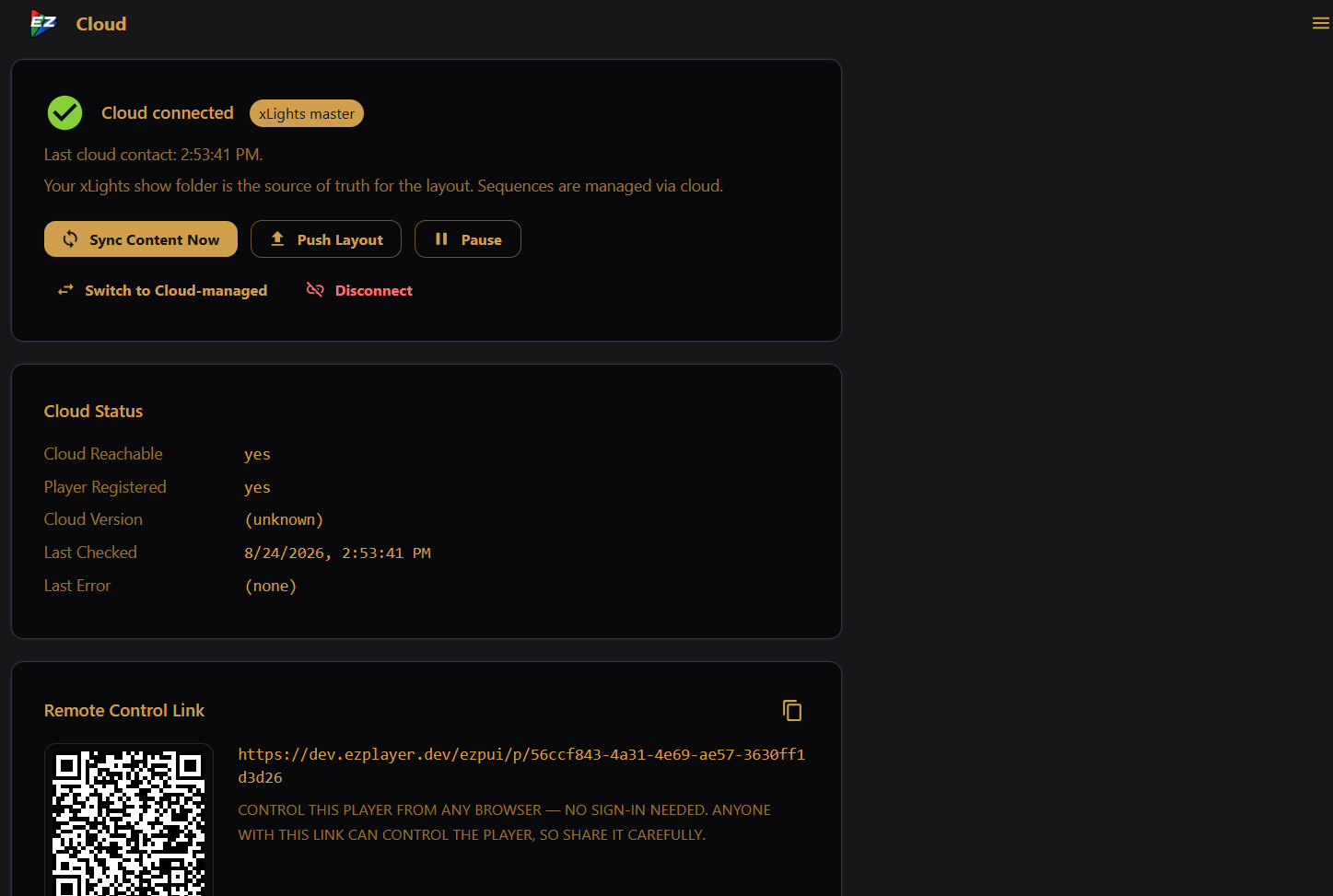
Once the player is registered, this card shows a QR code, the URL, and a copy button. Open the link in any browser to use the full EZPlayer UI over the internet — playlists, schedule, playback, volume, and the rest of the management screens — without being on the show network. It is the same UI that Manage Player opens on the EZRGB website.
The link includes the Player ID. Anyone who has the link can control the player; no sign-in is required. Share it only with people you trust. If it has been shared too widely, use Change Player ID under Cloud Configuration.
Two controls sit on the card:
- Enable Cloud Remote Control — turn this off to refuse remote control from the cloud. The link and QR code are hidden and anyone currently connected is disconnected. Registration, status reporting, and content sync continue.
- Cloud audio — when the player streams live audio to the cloud for browser listeners (viewer page, jukebox, preview). Auto streams only while someone is listening; Always stream and Never stream do what they say.
Remote control works only while the top card shows Cloud connected.
Cloud Layout
Shows layout sync between EZRGB and your show folder — status, direction, when it was last downloaded or uploaded, and any errors. A progress bar appears while a transfer is running.
From this card you can also:
- Fetch Layout — pull the layout from EZRGB (cloud-managed shows)
- Push Layout — upload your local layout to EZRGB (xLights-managed shows)
Cloud Content
Lists the sequences assigned to this player and how far along each download is. Each row shows a Last Updated time (from the newest file on that sequence) and size. Click a row to expand it and see individual files; use the copy icon to copy a file's path in the show folder.
Sequence statuses:
| Status | Meaning |
|---|---|
| installed | Ready to play — appears in Songs |
| downloading | Files are transferring now |
| pending / rendering | Cloud is still preparing the sequence |
| disabled | Turned off on EZRGB for this show |
| error | Something failed — expand the row for details |
| known | Seen in the manifest, but not ready yet |
If the list is empty, confirm the top card shows Cloud connected and you have sequences assigned on EZRGB. A halted chip means content sync stopped with an error — check Last Error and try Sync Content Now (or Sync Layout + Content) after fixing the underlying problem.
Cloud Configuration
Shows this folder's cloud URL and Player ID. The Player ID is masked; use the eye icon to reveal it or the copy icon to copy it.
- Change Player ID — generates a new Player ID and moves this player's cloud registration (sequences, settings, and server assignment) onto it. The old ID, and every remote-control link or QR code that used it, stops working immediately. Use this if you shared the control link with someone who should no longer have access. This is not the same as Generate New in the registration dialog, which creates a new ID and requires a full re-registration (see Cloud settings).
- Edit — opens the same registration / settings dialog as Settings → Cloud. Use it for polling schedule, cloud URL, or reassigning an existing Player ID.
On the EZRGB website
Once registered, open your EZRGB account and find the player under EZPlayer. Manage Player opens the same full EZPlayer UI as the Remote Control Link. Prefer a new browser tab so the player UI has full screen space.
For building the show entirely from the website, see Using Full Cloud Control.