Setting Up a Viewer Page
A viewer page is a public web page for your audience. Viewer pages generally provide background information about your show, where it is, how to see and hear it, and so on. Viewer pages can show what song is currently playing, what will play next, or allow requests and voting.
While you can make a viewer page anywhere, or use Remote Falcon, EZRGB provides an EZ way to make simple viewer pages.
This page walks through setting up a viewer page; if you prefer a reference-style page that lists every field, see Show Settings.
What viewers get
Viewers will see a page for your show. This page can be accessed from a URL/QR code found in the "Show Settings" section of the EZRGB website. You select a theme, a show image/logo, and configure the sections you want displayed to viewers.
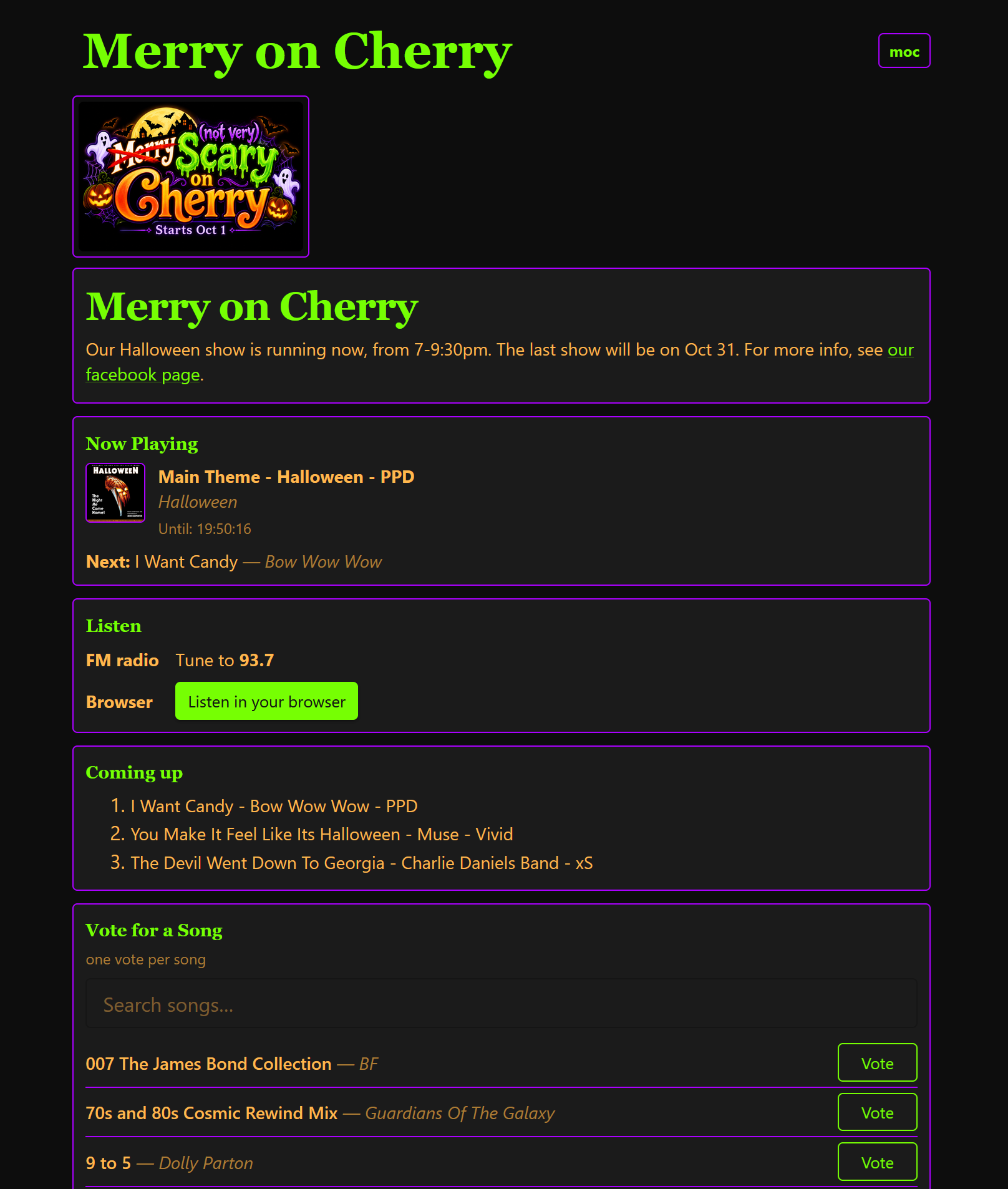
Viewer pages can be configured to include:
- A theme (colors and fonts)
- A show image / logo
- "Now playing" / "Up Next"
- Information on how to hear the audio
- The list of songs that may be heard, and the show schedule
- The show location
- Additional website URLs, social media, and contact information
- Viewer control
Before you start
While your show logo and basic information are always available, much of the content on the viewer page, including the schedule, song list, and artwork, is served by your player. Thus, your player must be online and registered to your account for everything to be shown.
- The player should be registered and the Cloud screen should show Cloud connected.
- If you want viewers to select the songs, you should have at least one playlist for viewers to pick from.
Enter basic show information and turn the page on
On EZRGB, in My Account open My Show Settings and:
- Fill in Show name and other information in Core Show Settings
- Enable Viewer page in Viewer Page Settings.
- Set the URL slug. Your page lives at
https://api.ezplayer.dev/shows/<slug>unless you are using a custom server. - Use Share link to copy the URL or download a QR code for signage.
Everything else on that screen (logo, theme, page sections, template) is optional and described in the Show Settings reference.
Let viewers listen
The Listen section of the viewer page offers viewers information on how to hear the music. Turn on the ones that fit your show:
| Option | How it works |
|---|---|
| FM | Shows the Frequency from your Show Settings so visitors can tune their car radios to the right station. You must have an FM transmitter. |
| Tune2 | See the Tune2 website |
| PulseMesh | See the PulseMesh website |
| In-browser listening | The player streams its audio to the cloud and the page plays it. |
You can easily combine approaches. EZPlayer supports multiple audio outputs, so you can play the music on outdoor speakers, an FM transmitter, and online options simultaneously.
Online Audio Listening
EZPlayer supports three ways for visitors to listen to your show's audio on their phones: integrations with PulseMesh and Tune2, and a built-in live audio stream available through your EZPlayer show page.
For EZPlayer's streaming to work, Cloud audio on the player's Cloud screen must be set to anything but Never stream.
Which online audio should you use?
PulseMesh and Tune2 are dedicated services for synchronized light show audio. They preload audio onto viewers' devices, making playback more resilient to unreliable cellular connections and are better suited to large audiences. They also offer features such as custom branding, listener analytics, and commercial licensing options, including music licensing arrangements.
EZPlayer's built-in audio streaming sends audio to the viewer's browser in near real time. It requires a good, stable internet connection and is intended for a relatively small number of simultaneous listeners. It doesn't require a separate service or additional setup.
Support: PulseMesh and Tune2 are commercial services with dedicated customer support. EZPlayer is a free, open-source project with community support through our Discord channel.
Our recommendation: For large audiences, unreliable cellular coverage, commercial features, or dedicated customer support, explore PulseMesh and Tune2. If you just want something EZ for a few viewers with good cellular coverage, try EZPlayer's built-in Listen button and upgrade if it does not meet your needs.
Choose your viewer control
EZPlayer's built-in viewer page and Remote Falcon both let viewers pick songs, and you can run either or both. The comparison is in Viewer Control. The rest of this page covers the EZPlayer viewer page; Remote Falcon needs no EZRGB setup beyond pasting its token into Viewer Control.
Open the request line
To accept requests via your show page, you need to apply settings in both EZPlayer and at EZRGB:
- On EZRGB, under Viewer control in Show Settings, choose Request or Vote and set cooldowns, queue limits, and anonymous participation. See Show Settings.
- In EZPlayer, open Settings → Viewer Control, turn on EZPlayer viewer page, and add schedule entries for the hours and playlist viewers can pick from. See Viewer Control.
Outside those hours the page still shows what is playing; it just does not take requests.
Check that your page is working
- Preview in window at the top of Viewer Page Settings opens the live page.
- On the player, Show Status → Viewer Control shows whether the page is taking requests, and Viewer Activity shows who is on the page and listening. See Show Status.
Add additional information
Fill in the contact form, experiment with the "Songs you may hear" list (including the gallery view), or edit the page template. See Show Settings for a full list of page controls.