Content Sync Settings
The Content Sync tile governs the two things a device that keeps its own copy of the show needs from this player: the show's content, and the sync that tells it when to play. What distribution does, how to read its report, and what to do when a device stays dark are on the Content Distribution page; this page is the settings themselves.
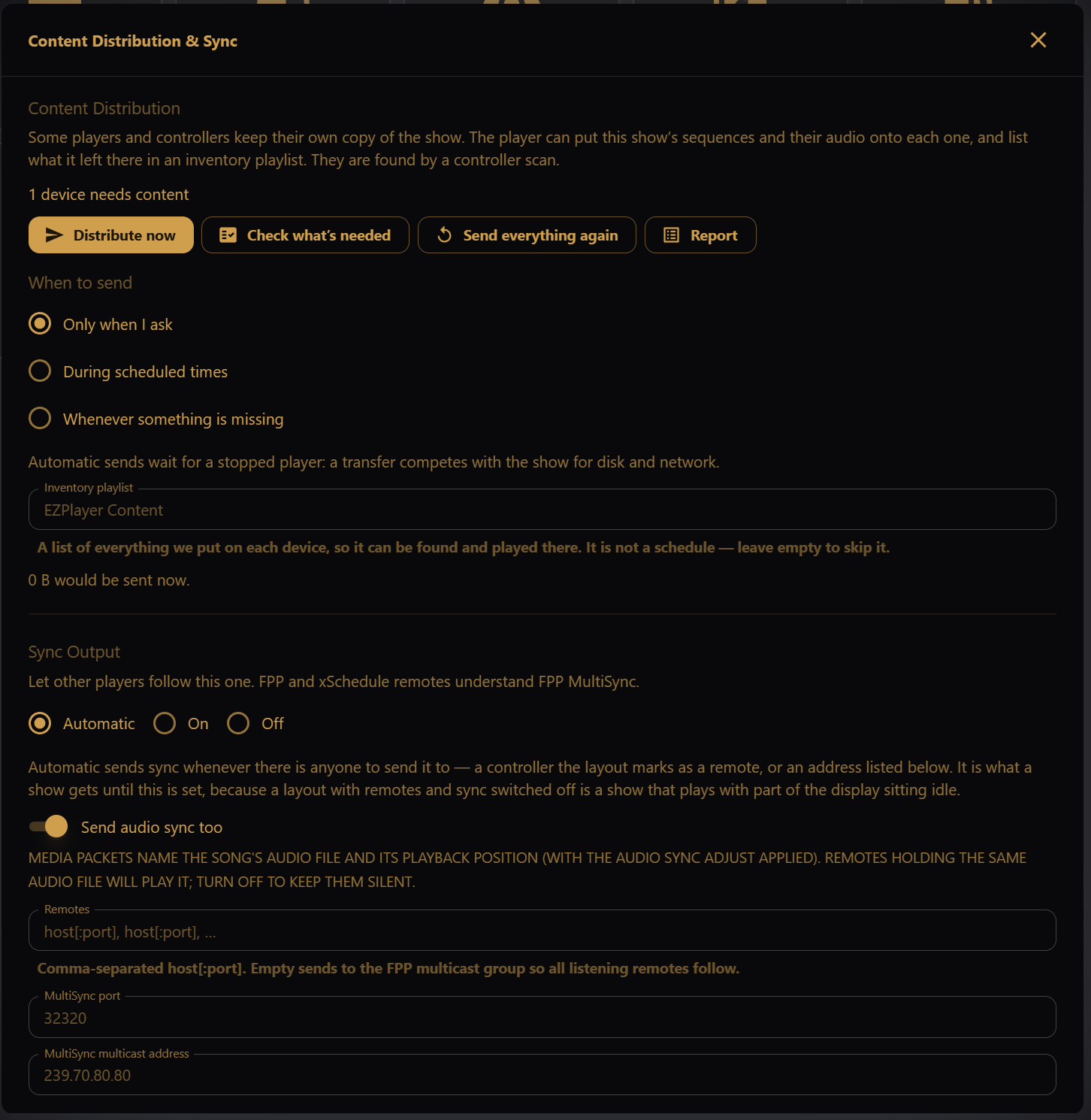
Content Distribution
The buttons at the top are the same actions the Show Status card offers — Distribute now, Check what's needed, Send everything again and the Report — beside the settings that govern them. A line under them says how many devices need content, and at the bottom of the section, how much a send would transfer now.
When to send chooses when distribution happens on its own:
- Only when I ask — nothing is sent unless you press a button.
- During scheduled times — sent inside the distribution windows you define. With no windows defined, nothing is sent automatically.
- Whenever something is missing — sent as soon as a check finds work.
With either automatic mode you can also set Send new songs as they are added and Look for work every (minutes). Automatic sends wait for a stopped player: a transfer competes with the show for disk and network.
Inventory playlist names the list of everything put on each device, so it can be found and played there. It is not a schedule — nothing runs because it exists. Leave it empty to skip it.
Sync Output
Sync lets other players follow this one. FPP and xSchedule remotes understand FPP MultiSync; details and limits are under FPP compatibility.
- Automatic (the default) — sync is sent whenever there is anyone to send it to: a controller the layout marks as a remote, or an address listed under Remotes.
- On — always send. Only one sync master should exist on a network.
- Off — never send. A layout with remotes and sync off is a show that plays with part of the display sitting idle, and the content status card says so.
Send audio sync too (on by default) adds the media packets that name the song's audio file and its playback position. A remote holding the same audio file will play it; turn this off to keep such remotes silent.
Remotes is a comma-separated list of host[:port]. Empty sends to the FPP multicast group, so every listening remote follows. MultiSync port (default 32320) and MultiSync multicast address (default 239.70.80.80) are there for an unusual network and are otherwise left alone.