Additional Settings
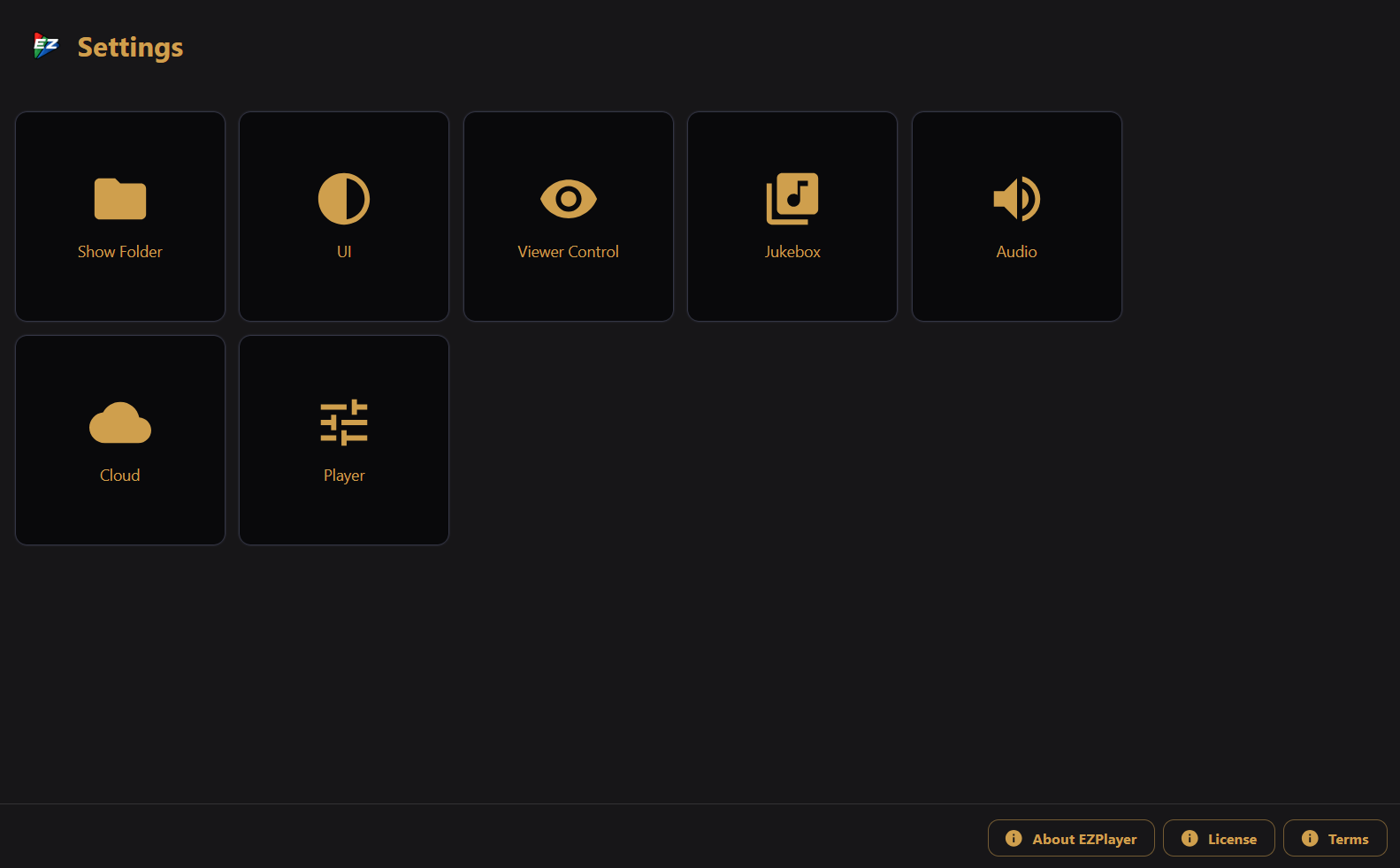
Open Settings from the sidebar to configure how EZPlayer looks, sounds, and connects to the outside world. The screen shows a grid of tiles — click one to open its dialog.
Most playback settings (show-folder, ui, viewer control, jukebox, audio, cloud, player) save automatically when you change them. They are stored in your show folder and pushed to the playback engine right away. You can also change them from the LAN UI or the HTTP API.
UI settings (theme, scale, 3D controls) are stored in the browser on that device only.
Software Update and Diagnostics settings are stored on the machine, not in the show folder. See Software Update and Diagnostics.
The desktop app and the LAN browser UI share the same settings sections, except where noted on each page: the desktop app has Show Folder (which includes Media Folder); the LAN UI replaces Show Folder with a standalone Media Folder tile.
Two further tiles appear only if you have deliberately enabled them from the command line on the player machine: Shell, a terminal on that machine, and Files, a file manager for the show folder. Each has its own password, and neither can be turned on from any UI — see Remote access.
Some of these tiles map to Advanced Features pages: Viewer Control and Volume. The Player tile (start at sign-in, prevent sleeping, background blend mode, idle blackout, sync output, advanced overrides) has its own page. The Diagnostics tile (crash reports, support bundle) and the Software Update tile (check, download, install, skip) each have their own page: Diagnostics, Software Update.
About, License, and Terms
The footer at the bottom of the Settings screen opens:
- About EZPlayer — player and cloud version numbers; in the cloud UI, also the version of the cloud UI bundle itself.
- License — open-source licenses for bundled components.
- Terms — EZRGB terms of service.